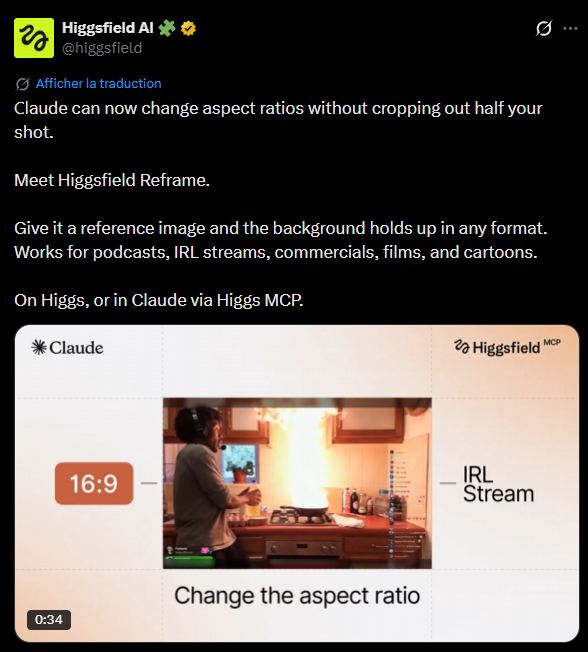
Higgsfield announced Reframe — a tool to change the aspect ratio of an image or video (16:9 → 9:16, etc.) while keeping visual coherence in the frame. It is available on the Higgsfield platform and via the Higgsfield MCP connector at mcp.higgsfield.ai.
Why it matters
The use case is concrete: a landscape IRL stream, a 16:9 ad, a podcast thumbnail — everything can be reformatted for TikTok, YouTube Shorts, or a banner without losing half the frame to a hard crop.
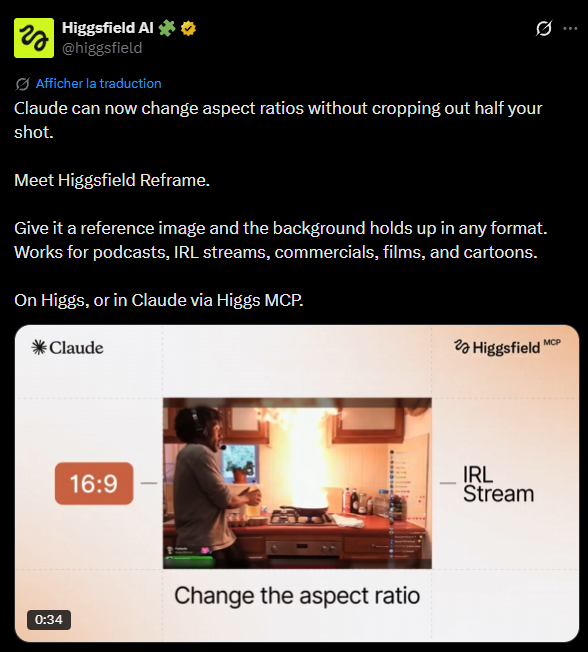
Important nuance for production: this workflow operates on still images — you generate new ratio versions on the image side before video animation. Plan reframing upstream when building AI video pipelines. Higgsfield is not inventing new technology here; they are productizing and distributing an outpainting workflow the AI community has run for months on the same underlying models. Their edge is UX and accessibility.
Distribution on existing workflows
The pattern is recurring across Gen AI in 2026:
- Step 1 — ComfyUI makers and engineers publish open workflows (outpaint, upscale, face swap)
- Step 2 — A platform (Higgsfield, Krea, Fal…) wraps the same models (Nano Banana Pro, Seedance, FLUX…) behind one-click UI
- Step 3 — They add an MCP connector so Claude, Cursor, or OpenClaw call the tool in natural language
- Step 4 — Launch comms + visual demo make the workflow feel official and accessible to mainstream creators
Reframe is the marketing name for outpainting. Higgsfield's Expand Image app (higgsfield.ai/apps/expand-image) already offered upload + ratio selection with no prompt. Reframe MCP is the same logic wired into Claude.
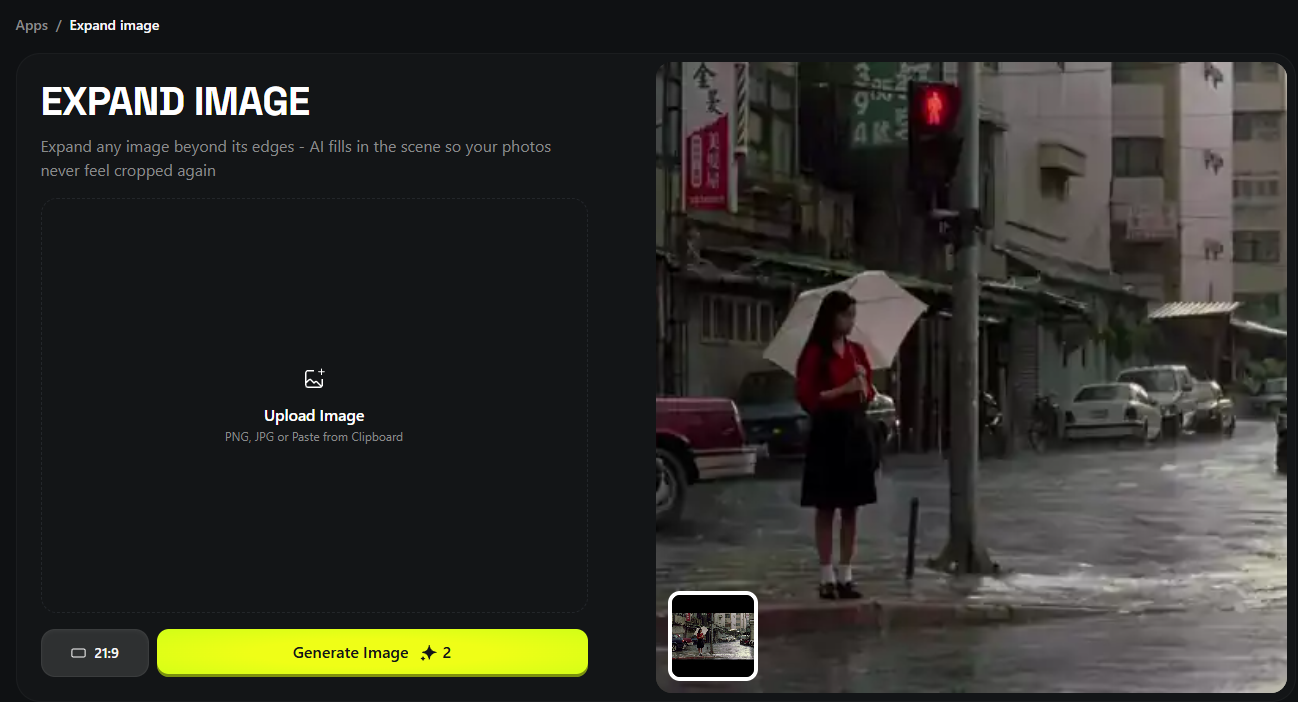
That is not a criticism — it is a business model. Higgsfield sells convenience (OAuth, credits, 30+ models, video included) on a technical brick you can reproduce via API if you accept the complexity. The reason to build your own pipeline: full access to the workflow graph, and far more control for professional use.
How outpainting works (simply)
Example: you have a 9:16 phone photo of your subject and need a 16:9 desktop wallpaper. You embed the 9:16 image in a pipeline that pads the canvas to the target ratio (often with a green mask on empty zones), then an image model fills only the padded regions while preserving original pixels.
BEFORE (16:9)                    AFTER (9:16)
┌──────────────────┐            ┌─────┐
│                  │            │ ░░░ │  ← AI fills
│    [  SUBJECT  ]   │     →      │[SUBJ]│  ← original pixels intact
│                  │            │ ░░░ │  ← AI fills
└──────────────────┘            └─────┘

░░░ = generated outpaint · SUBJECT = preserved source
Higgsfield Reframe pipeline (black box)
┌─────────────┐     ┌──────────────────────┐      ┌─────────────┐
│  Image or   │     │   Higgsfield Reframe │      │   Image /   │
│ frame video │ ──► │  (pad + outpaint IA) │ ──►  │   clip at   │
│  + ratio    │     │  Nano Banana Pro…    │      │  new format │
└─────────────┘     └──────────────────────┘      └─────────────┘

Via MCP in Claude:
  "Reframe this image to 9:16"  →  OAuth Higgsfield  →  result in chat
Why Higgsfield is practical for this use case
- Zero technical setup — no ComfyUI nodes, no Gemini API key to configure
- Chat-native — « pass this clip to 9:16 » from Claude with the MCP connector
- Video included — streams, ads, podcasts; Reframe handles temporal reframing, not just stills
- Prompt-free — the model reads the scene and extends the environment automatically
- Multi-format social — 16:9, 9:16, 4:3, 1:1 in a few clicks across platforms
Going further — ComfyUI template (tested)
Reference file: template_outpaint_to_any_aspect_ratio_nano_banana_pro.json. This workflow does the same job as Higgsfield Reframe — but exposes every step. Ideal when you need creative control, extreme ratios (32:9), or integration into a production pipeline (ComfyUI Cloud, batch, API).
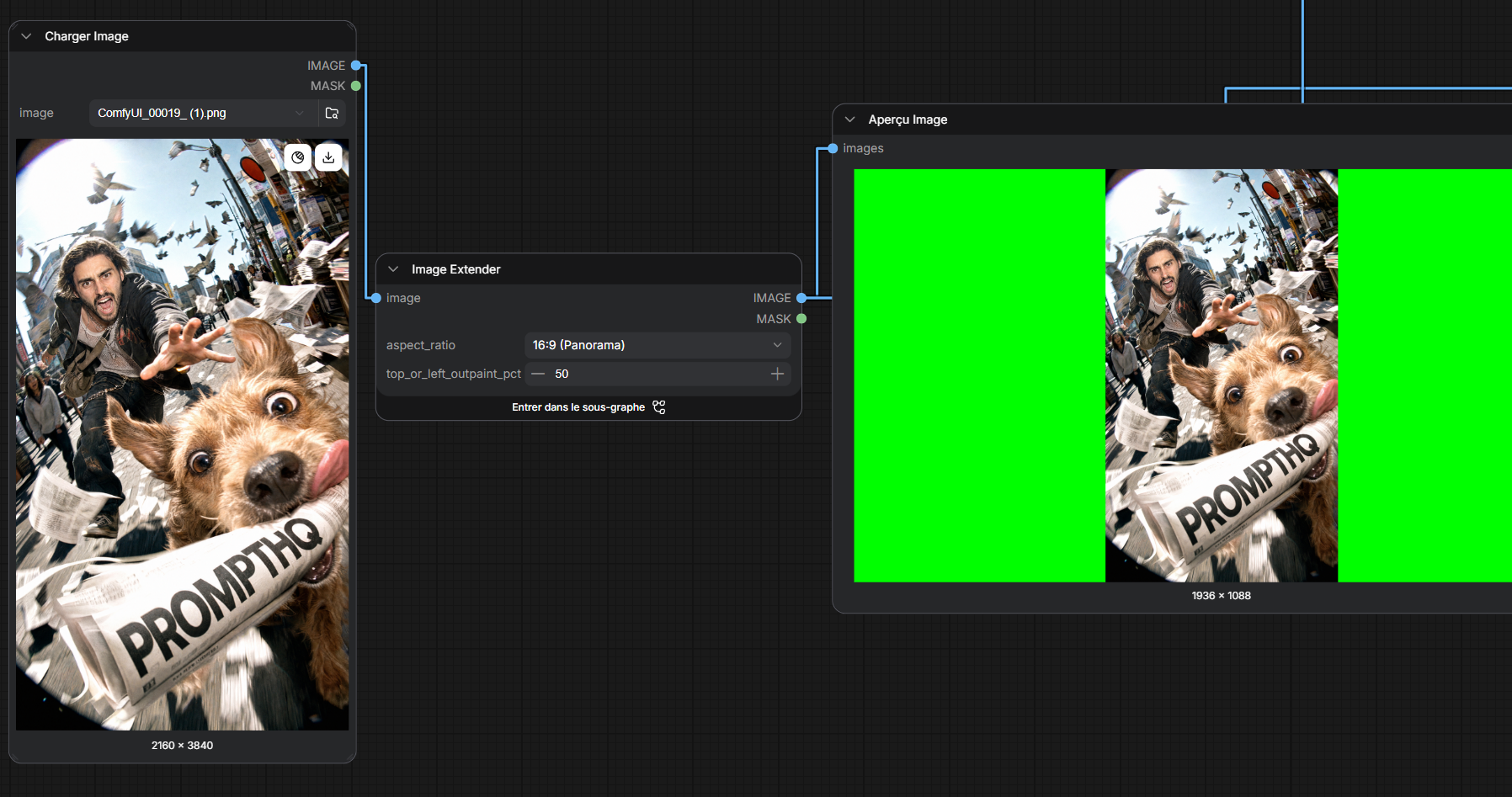
Node graph overview
LoadImage ──► Image Extender ──┬──► PreviewImage (frame + green mask)
(subgraph)      │               │
                │               └──► GeminiImage2Node (Nano Banana Pro, 4K)
                │                         │
                │                         ├──► SaveImage
                │                         └──► ImageCompare ◄── resized original
                │
   [aspect_ratio]  [top_or_left_outpaint_pct]
Image Extender subgraph — how it works
The subgraph is not AI — it prepares the canvas so the model knows what to fill.
- FluxResolutionNode — picks target format (e.g. 32:9 ultrawide, ~2.1 MP)
- ImageResize+ — scales source to fit inside the frame without cropping
- top_or_left_outpaint_pct (0–100) — subject placement: 50 = centered, 0 = top/left, 100 = bottom/right
- ImagePadForOutpaint — adds empty bands around the image
- EmptyImage (#00FF00) + ImageCompositeMasked — colors padding bright green for the model
Why green? It acts as a chroma key. The LLM node receives: « fill only the green pixels, do not touch original pixels. » If your subject contains a lot of green (plants, green screen), change the fill color in the subgraph.
PROMPT:
Outpaint/fill the green pixels. Retain composition of the visible image pixels.
Analyze the original image content to understand what the outpainted region should be.
DO NOT MODIFY the original image pixels. ONLY ALTER THE GREEN PIXELS.
The green outpainted pixels must seamlessly blend into the scene.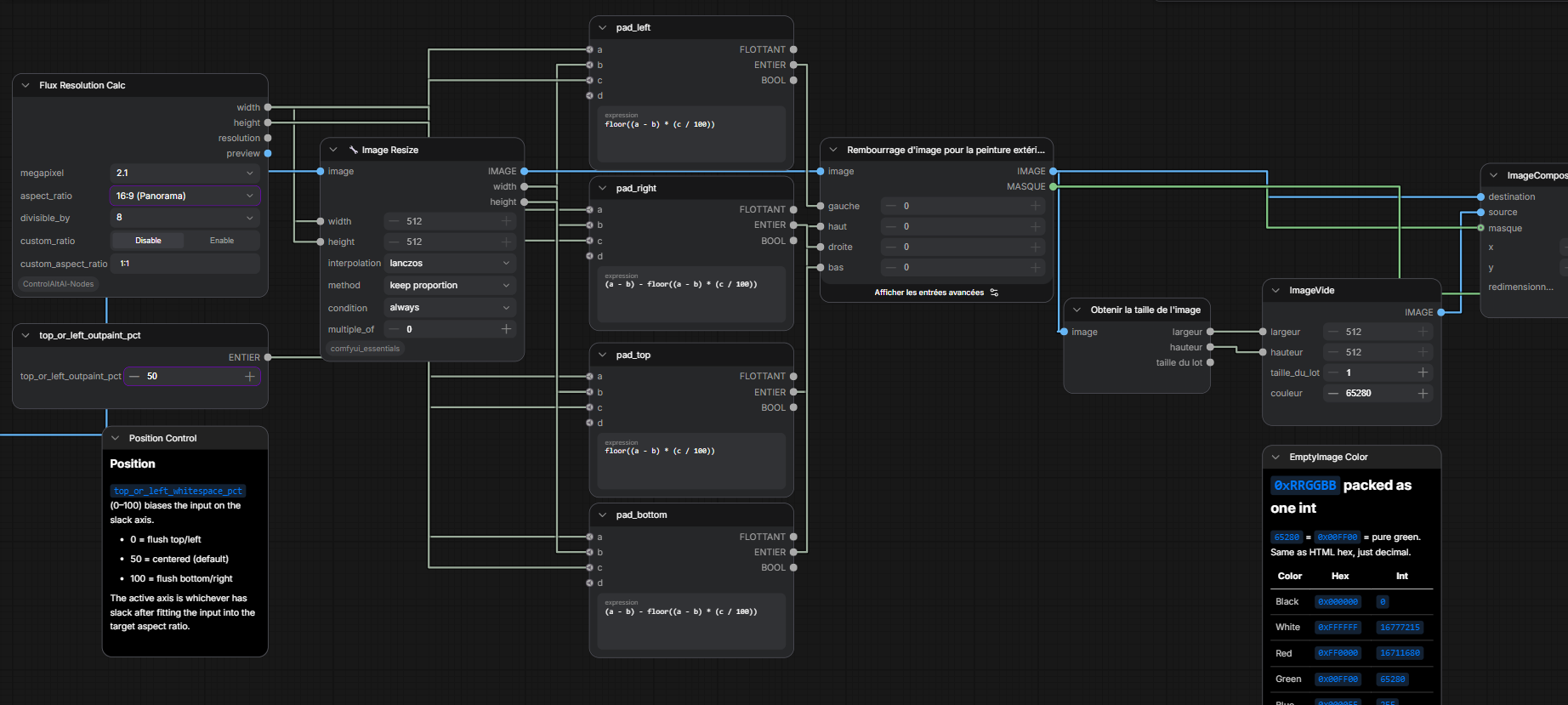
AI step — GeminiImage2Node (Nano Banana Pro)
Model: gemini-3-pro-image-preview · Resolution: 4K. Output: ImageCompare (before/after) + SaveImage.
Comparison — two approaches
┌─────────────────────┬──────────────────────────┬──────────────────────────┐
│                     │  Higgsfield Reframe MCP  │  ComfyUI Outpaint        │
├─────────────────────┼──────────────────────────┼──────────────────────────┤
│ Setup               │  OAuth, ~1 min           │  Nodes + LLM API key     │
│ Interface           │  Chat / web app          │  Visual node graph       │
│ Subject placement   │  Auto (black box)        │  Slider 0–100 explicit   │
│ Prompt              │  None / minimal          │  Full control            │
│ Extreme ratios      │  Standard social         │  32:9, custom MP         │
│ Debug               │  Final result only       │  Green preview + compare │
│ Batch / pipeline    │  Via MCP agent           │  Queue, Cloud, API       │
│ Cost                │  Higgsfield credits      │  Direct Gemini API       │
│ Model               │  Higgsfield stack        │  Nano Banana Pro (4K)    │
└─────────────────────┴──────────────────────────┴──────────────────────────┘
When to use which
- Higgsfield — fast reframing in chat, low control needs, no need to scale the workflow. Risk: iteration loops, subject not placed where you want.
- ComfyUI — precise subject placement, cinematic ratios (21:9, 32:9), custom prompts for complex scenes, scalable production integration.
Setup protocol
Option A — Higgsfield MCP (Claude / Cursor)
- Settings → Connectors → Add custom connector → URL: mcp.higgsfield.ai
- Connect + OAuth with your Higgsfield account
- Prompt: « Reframe this image to 9:16 without cropping the subject »
Option B — ComfyUI template
- Import template_outpaint_to_any_aspect_ratio_nano_banana_pro.json
- LoadImage → choose your source
- Image Extender → aspect_ratio dropdown + top_or_left_outpaint_pct (50 = centered)
- Verify green preview → Queue → compare before/after
Higgsfield just shipped Reframe in Claude. Spoiler: it is outpainting — and you can reproduce it with more control and scalability for less, if you need production-grade reframing.
Verdict
Use Higgsfield for quick client demos or mainstream one-off reframing. Use ComfyUI or a custom script (Pillow geometry + image model API call) for controlled production — placement, cinematic ratios, batch campaigns. Documenting both shows you understand the stack, not just platform marketing.
- Announcement: x.com/higgsfield/status/2060744172957823376
- Higgsfield MCP: mcp.higgsfield.ai
- Expand Image: higgsfield.ai/apps/expand-image
- MCP blog: higgsfield.ai/blog/Generate-AI-Videos-From-Claude-with-Higgsfield-MCP